artwork by Gemini 3 Pro
Editing NotebookLM Slides: A 4-Tool Pipeline
Google’s NotebookLM can generate beautiful slide decks from your notes in seconds, but it exports them as PDFs with no edit button. When the AI gets a date wrong or hallucinates a statistic, you are stuck. This article walks through a 4-tool pipeline, NotebookLM to Canva to Google Slides to Nano Banana Pro, that converts locked PDF slides into fully editable presentations and uses AI again to fix the content without breaking the design.
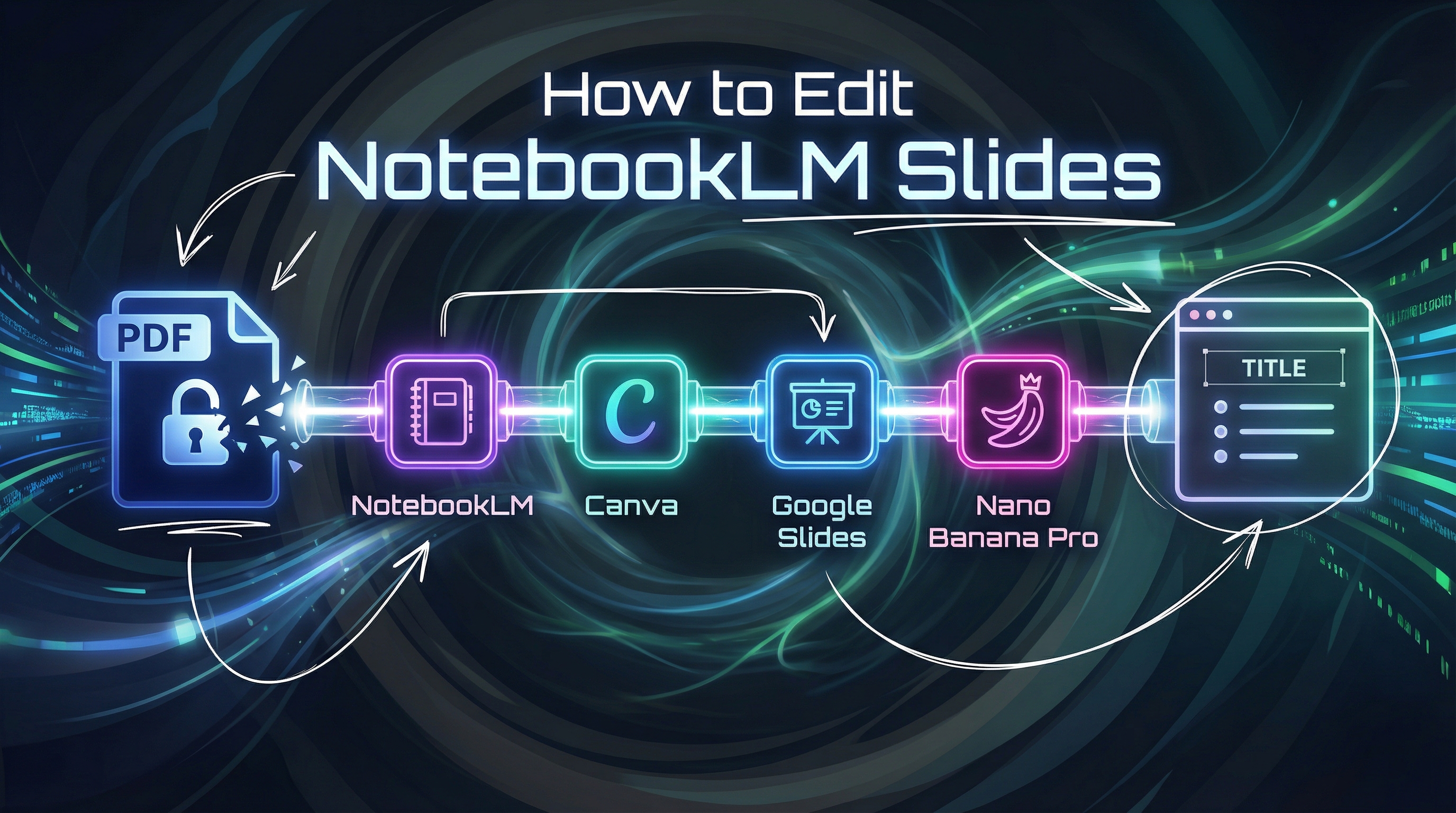
Figure. When AI gives you 90%, build a pipeline for the last 10%.
The Problem: Beautiful Slides You Cannot Edit
NotebookLM [1] is one of Google’s most impressive AI tools. Feed it your notes, research documents, or meeting transcripts, and it can generate a polished slide deck in seconds. The output looks professional. The structure is logical. The content is drawn directly from your sources.
It feels like magic. Until you look closer.
Maybe a date is wrong. Maybe it hallucinated a statistic. Maybe you just want to rephrase a bullet point that reads awkwardly. You stare at the output and realize the uncomfortable truth: NotebookLM exports slides as a PDF. There is no “edit” button. No way back into a slide editor. You are stuck with a read-only document.
Your only options are to regenerate the entire deck, hoping the AI gets it right this time, or accept the errors and move on. Neither option is acceptable when you are presenting to a client, a class, or your team.
Google may eventually add direct export to Google Slides from NotebookLM, but that functionality is not available yet. Instead of waiting, we can solve the problem right now by chaining together tools that already exist into a simple pipeline.
The Insight: A 4-Tool Pipeline
The fix is not a single tool. It is a chain of four tools, each doing what it does best, that transforms a locked PDF into a fully editable, AI-correctable slide deck.
The pipeline:
| Step | Tool | What It Does |
|---|---|---|
| 1 | NotebookLM | Generates the initial slide deck from your notes |
| 2 | Canva | Converts the PDF into an editable PPTX file |
| 3 | Google Slides | Provides a cloud-native editor with add-on support |
| 4 | Nano Banana Pro | Uses AI to fix slide content without breaking design |
The principle is straightforward: AI generates, you convert, AI fixes. Let’s walk through each step.
Step 1: Generate Your Slides in NotebookLM
Start where the magic happens. Open NotebookLM [1], upload your source material (notes, documents, research papers), and let it generate a slide deck. The tool analyzes your content, identifies key themes, and produces a structured presentation.
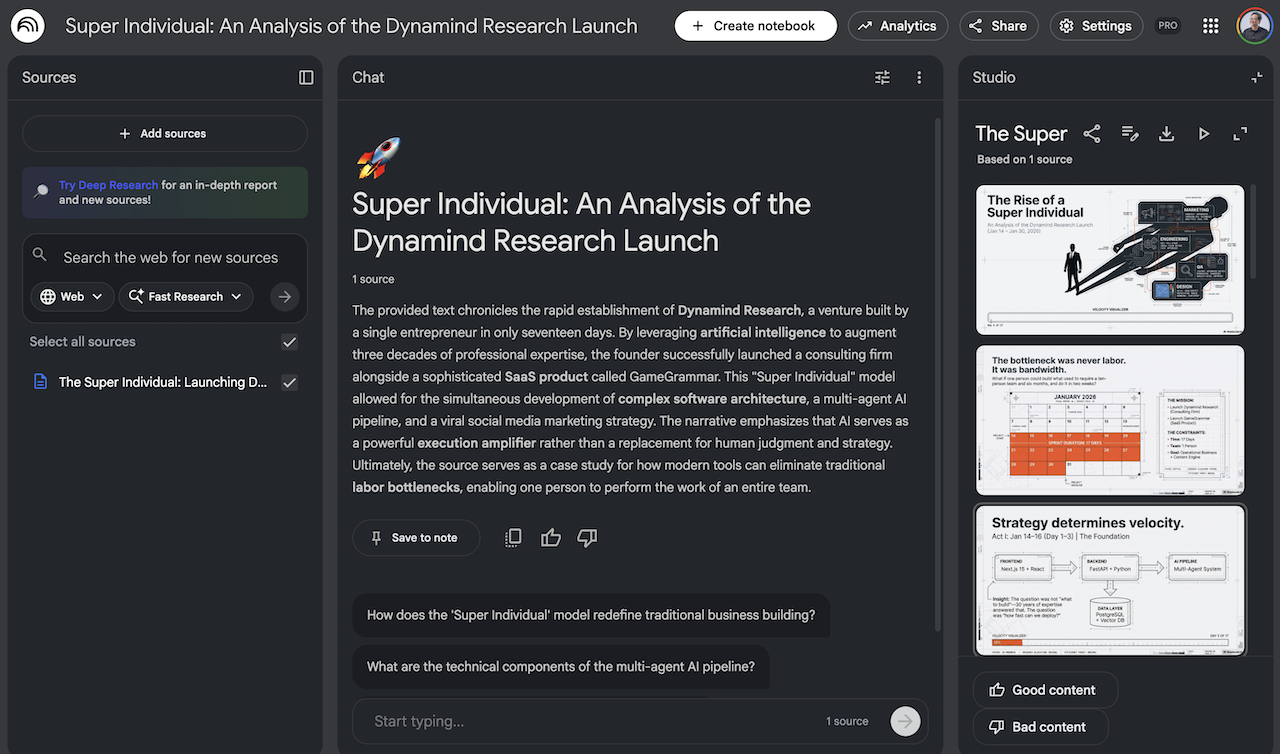
Figure. NotebookLM generates polished slide decks from your uploaded source material. Download the result as a PDF.
This gives you a visually polished deck, but one that is locked inside a static document. We need to break it out.
Step 2: Convert PDF to PPTX Using Canva
Canva [2] offers a free PDF-to-PPTX converter that does the heavy lifting of turning your static slides into editable PowerPoint format. You will need a Canva account (the free tier works).
Go to Canva’s PDF to PPT Converter and upload your NotebookLM PDF.
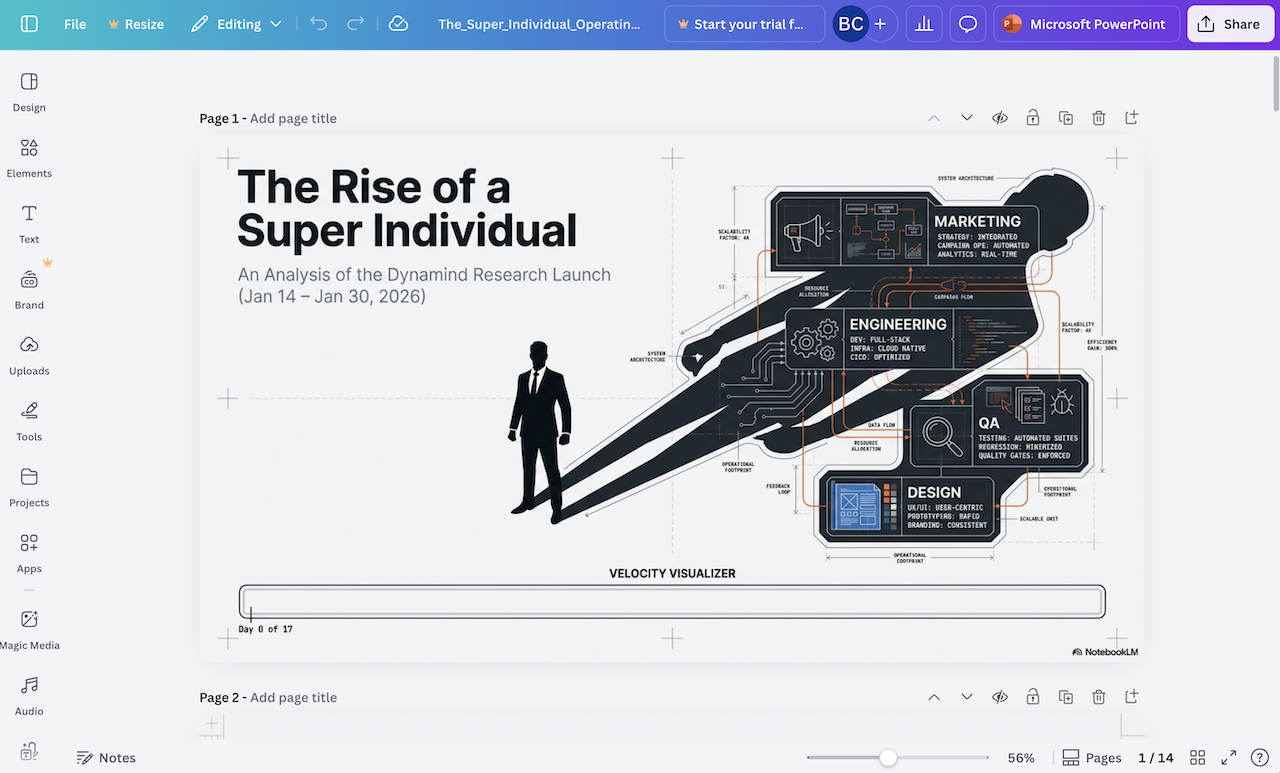
Figure. Canva’s free PDF to PPT converter parses your NotebookLM PDF into editable slide elements.
Canva will parse the PDF into editable slides. Now, here is a critical detail that can save you frustration later.
Do not just download the converted file directly. Instead, use the Share > Microsoft PowerPoint export option. This preserves the aspect ratios of all images in the deck. The difference is subtle but important: a direct download can stretch or crop images when you open the file in another editor, while the Share export maintains fidelity.
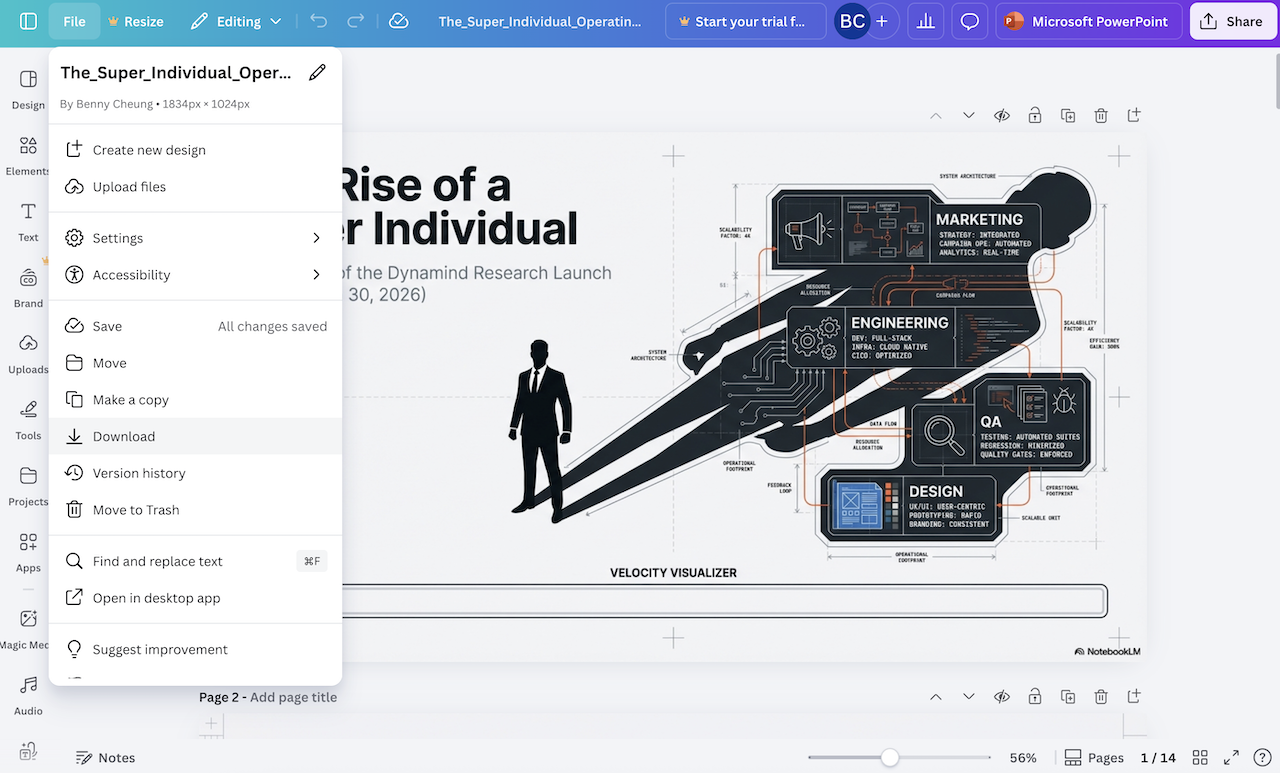
Figure. Canva provides multiple download options. The direct download works, but the Share export preserves image aspect ratios more reliably.
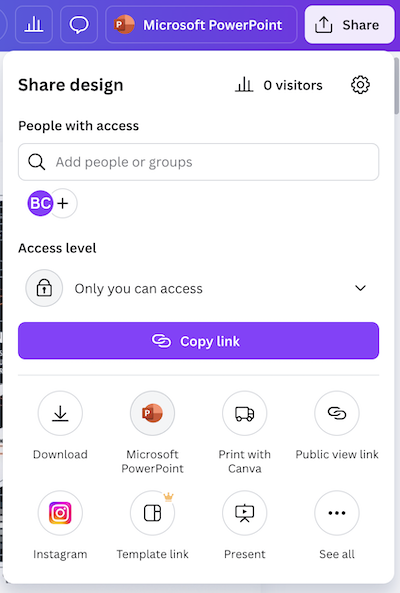
Figure. Use Share > Microsoft PowerPoint to export. This method preserves the original image dimensions and layout fidelity.
Step 3: Import into Google Slides
Take the PPTX file and import it into Google Drive. Open it, then select Save as Google Slides [3]. This converts the PowerPoint file into Google’s native slide format.
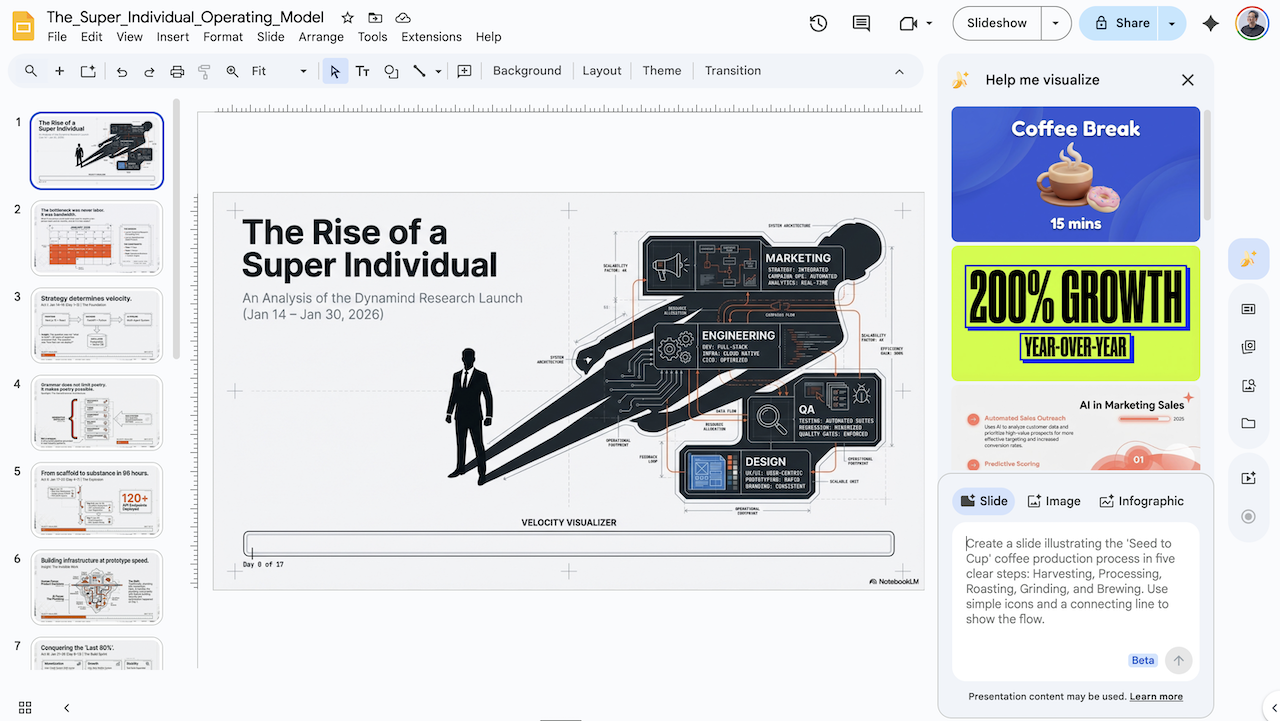
Figure. Import the PPTX file into Google Drive and save as Google Slides to gain access to the full editing suite and add-on ecosystem.
Why Google Slides specifically? Three reasons:
- Full editability. Every text box, image, and shape becomes individually editable.
- Cloud-native collaboration. Share with your team for real-time review and refinement.
- Add-on ecosystem. This is where the final piece of the puzzle lives.
Step 4: Fix Content with Nano Banana Pro
Here is where the workflow becomes genuinely clever.
Nano Banana Pro [4] is a Google Slides add-on that brings AI-powered editing directly into your slide deck. Instead of manually retyping text on slides (which often breaks formatting, misaligns elements, or introduces visual inconsistencies), you describe what needs to change and the AI regenerates the slide while preserving the visual style.
For example, say NotebookLM misspelled a key term, cited a wrong year, or used awkward phrasing. You open Nano Banana Pro in the sidebar and describe the fix in plain English:
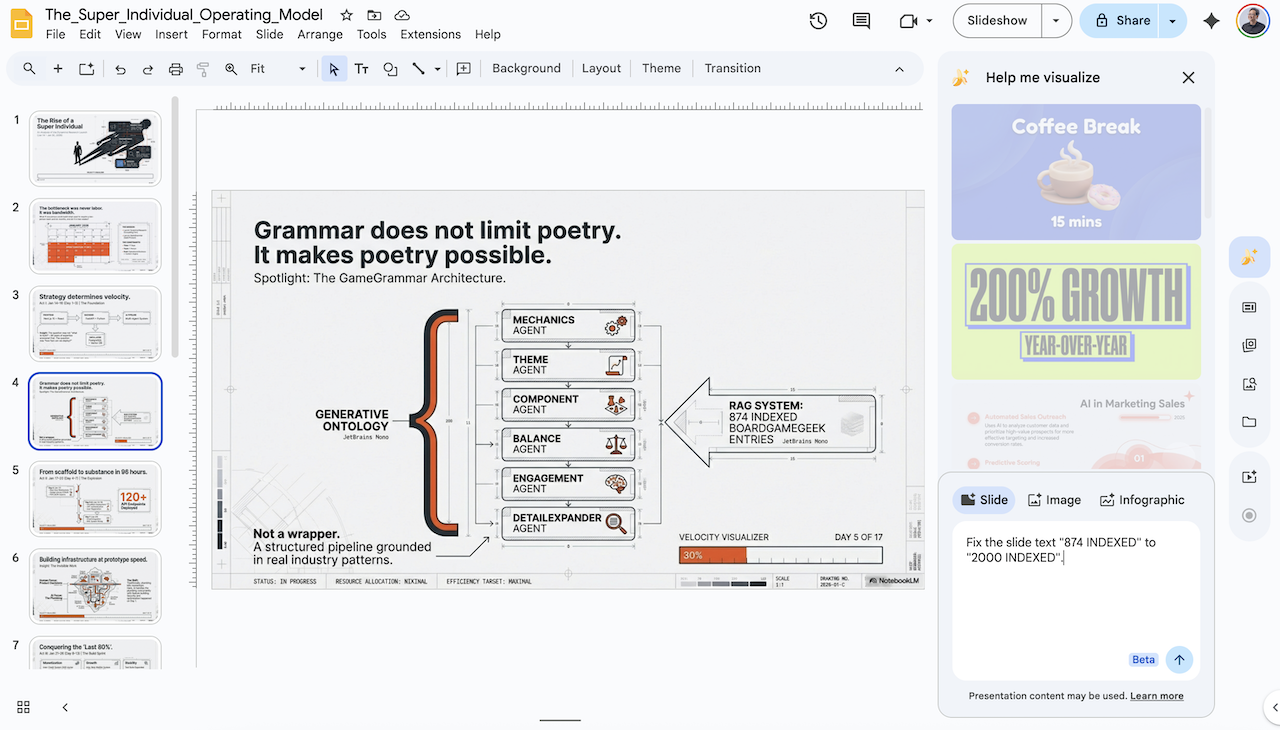
Figure. Nano Banana Pro’s sidebar lets you describe corrections in natural language. The AI understands both the content change and the visual context.
After a few seconds, it generates a corrected version of the slide. You insert the result as a new slide:
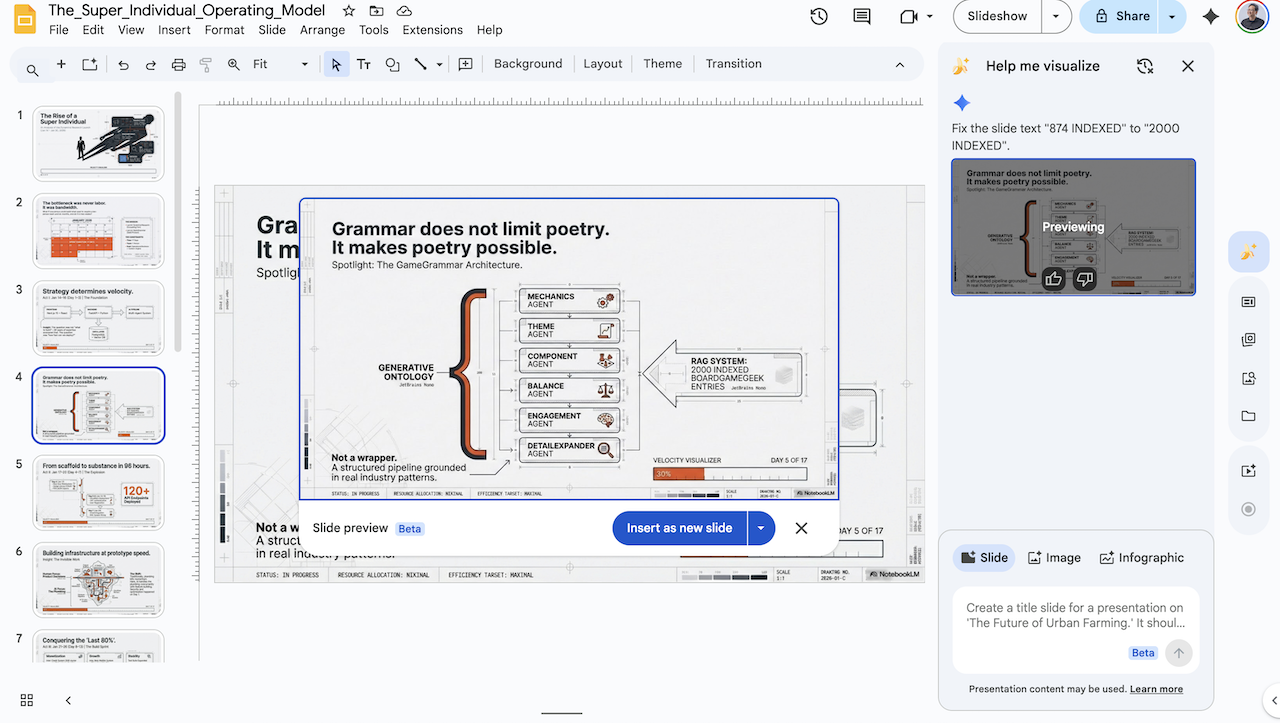
Figure. The AI generates a corrected slide that maintains the original visual design while incorporating your content changes.
Then you delete the old slide with the error. Done. A clean, corrected deck that looks like nothing was ever wrong.
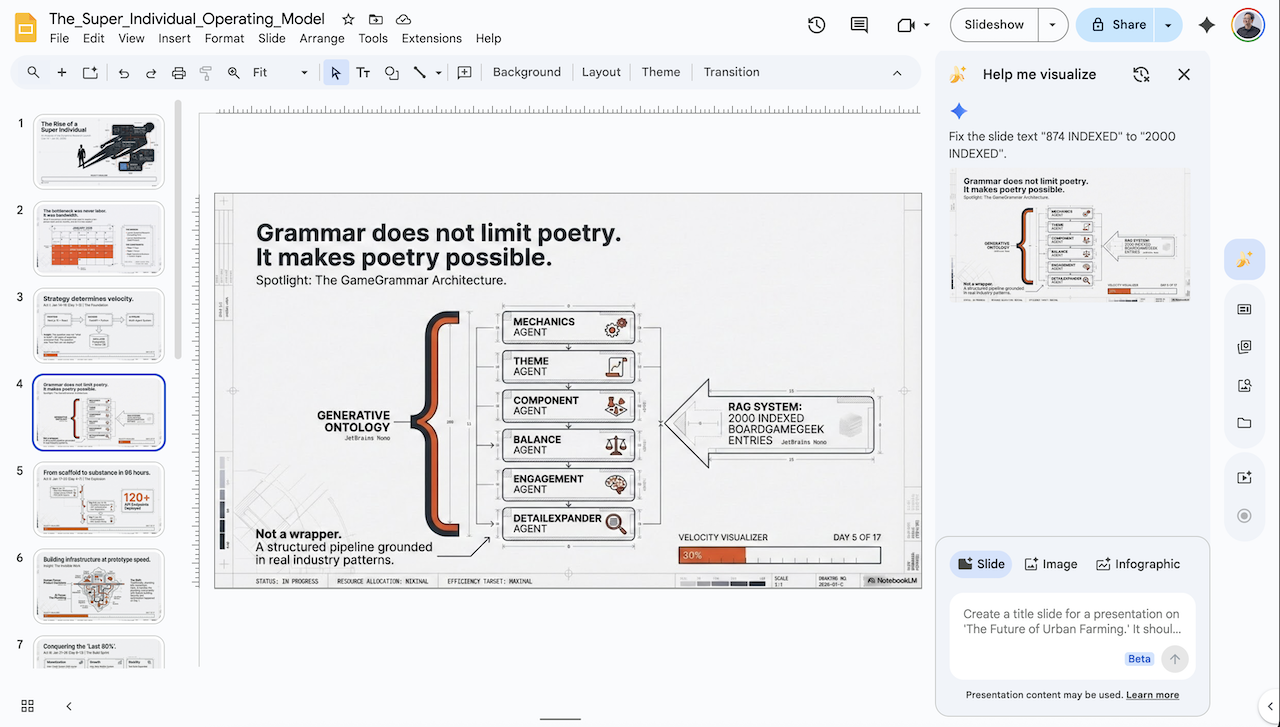
Figure. The final result: a corrected slide seamlessly replaces the original, with no visible signs of editing.
What You Get
By chaining NotebookLM, Canva, Google Slides, and Nano Banana Pro, you get:
- AI-generated first drafts that save hours of slide creation
- Full editability despite the original output being a locked PDF
- AI-assisted corrections that fix content without breaking design
- Cloud-native collaboration so your team can review and refine together
Note that if you do not need the AI-powered correction step, you can stop at Step 3. Google Slides gives you full manual editing capability. Nano Banana Pro is the addition that makes corrections faster and less error-prone.
Limitations
This workflow is effective, but it is not perfect. Here are the honest trade-offs:
Slides are images, not editable elements. Canva’s PDF-to-PPTX conversion extracts each PDF page as an image and inserts it into a PowerPoint slide. This means the text, shapes, and charts are not individually editable in the PPTX. You get one flat image per slide. This is exactly why Step 4 matters: Nano Banana Pro can regenerate a slide from its visual content, giving you a corrected version without needing to edit individual text boxes that do not exist.
Tool chain complexity. Four tools is more steps than anyone would prefer. Ideally, Google would add native slide editing to NotebookLM’s output, or at least offer PPTX export alongside PDF. Until then, this pipeline fills the gap.
Nano Banana Pro scope. The add-on works best for targeted corrections such as fixing text, adjusting bullet points, and correcting data. It is less suited for wholesale redesigns of slide structure or layout. For major changes, you are better off editing directly in Google Slides.
Concluding Remarks
The bigger lesson here extends beyond NotebookLM slides. This workflow solves a friction point that is becoming common across AI tools: the output is impressive but imperfect, and the “last mile” of editing is either impossible or painfully manual.
The pattern repeats everywhere. An AI image generator produces a nearly-perfect visual with one wrong detail. A code assistant scaffolds an entire project but misses an edge case. A writing tool nails the structure but stumbles on a specific claim. In each case, the most productive response is not to regenerate and hope, but to build a workflow that bridges the gap.
This is what it means to be an AI-powered super individual [5], not mastering every tool, but knowing how to chain them into workflows that turn “almost right” into “exactly right.” The value is not in any single tool. It is in the orchestration.
When one AI tool gives you 90% of what you need, the answer is not to fight that tool’s limitations. Build a pipeline for the last 10%.
References
[1] Google. NotebookLM. Google Labs, 2024.
- Google’s AI-powered notebook that can generate slide decks, podcasts, and summaries from uploaded source material.
[2] Canva. PDF to PPT Converter. Canva, 2024.
- Free online tool for converting PDF documents into editable PowerPoint (PPTX) format.
[3] Google. Google Slides. Google Workspace, 2024.
- Cloud-native presentation editor with real-time collaboration, version history, and an add-on ecosystem.
[4] Nano Banana. Nano Banana Pro - Google Workspace Marketplace. Google Workspace Marketplace, 2024.
- AI-powered Google Slides add-on that enables natural language editing of slide content while preserving visual design.
[5] Benny Cheung. The Rise of the AI-Powered Super Individual. Benny’s Mind Hack, 2025.
- How AI empowers individuals to achieve the output of entire teams through tool orchestration and “Silicon Intelligence Management.”